


tech support page vecoax micromod 3 plus
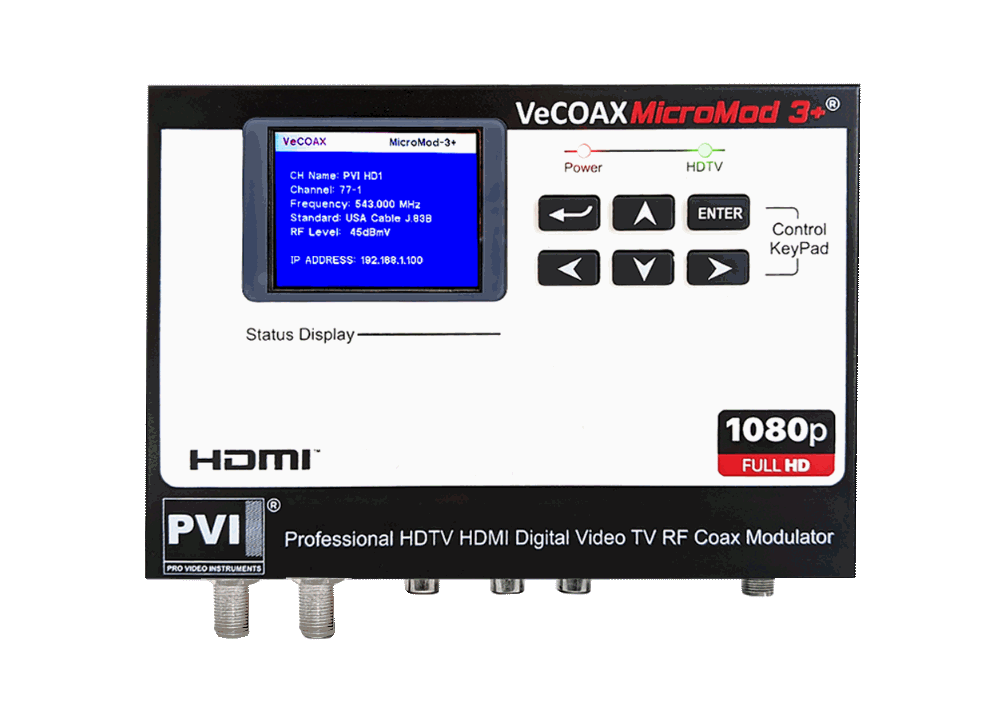
Single Unit Quick Installation
IF you are merging the Micromod 3+
with other coaxial TV channels,
FIRST find out a FREE CHANNEL
not used on your TV channel list
so channels will not jam each other.
Look on your TV channel list
for an UNUSED channel number.
At first, connect the Micromod 3+ DIRECTLY on your TV with a short piece of coaxial cable
2) You do not need to connect any HDMI input at this stage
3) Check on the Micromod 3+ Display it shows the CORRECT Channel Name & Numbers you want.
Click here for how to set the micromod 3+ channel
4) Rescan your TV's digital channel list to locate the Micromod 3+ Channel on your TV.
You should see a color-bars test pattern like the one below:

Troubleshoot: channel not found →
6) Disconnect the Micromod 3+ from the TV
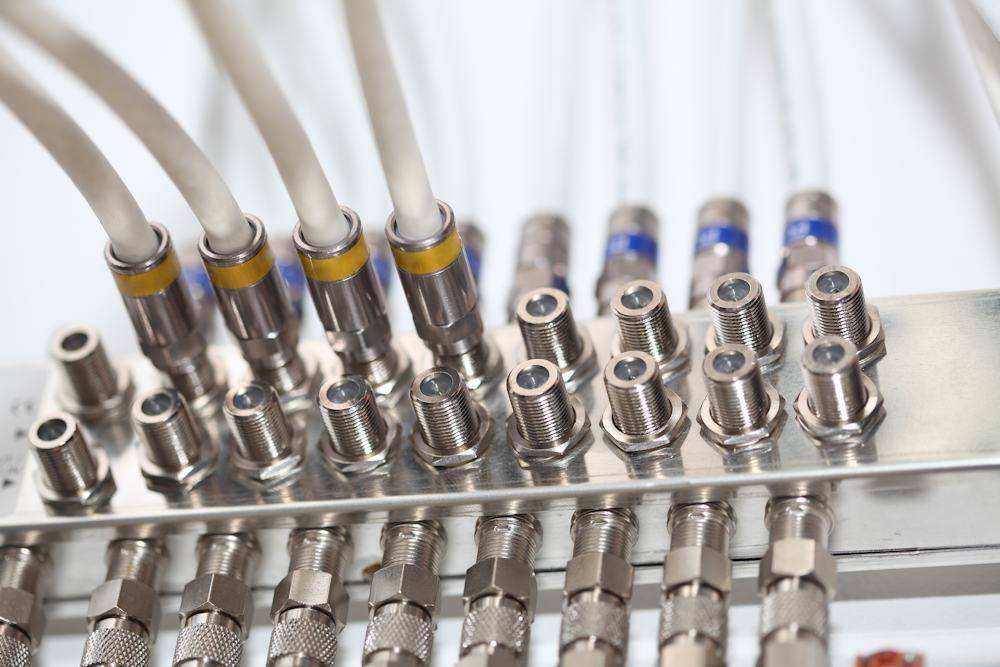
8) Move the Micromod 3+ to the first Coaxial junction box splitter near the TV
Connect the Micromod 3+ to the splitter so the Micromod 3+ channel signal reaches all TVs through the splitter.
See the diagram below:
- If yes — rescan all other TVs to find the Micromod 3+ channel, following the same procedure used on the first TV.
11) Disconnect the Micromod 3+ from this splitter and connect to the next ones, one by one, repeating the same test from STEP #8
Troubleshoot HDMI sources →
Multiple Units Quick Installation
IF you are merging the Micromod 3+
with other coaxial TV channels,
FIRST find out a FREE CHANNELs
not used on your TV channel list
so channels will not jam each other.
Look on your TV channel list
for an UNUSED channel numbers.
(A) Prepare your Micromod 3+ ON Different Channels
To merge multiple Micromod 3+ over the same coaxial each must be set to a different channel so they do not Jam each other
(B) Install Your Micromod 3+ one by one
At first, connect each Micromod 3+ DIRECTLY on one TV with a short piece of coaxial cable
2) You do not need to connect any HDMI input at this stage
3) Check on the Micromod 3 Display it shows the CORRECT Channel Name & Numbers you want.
Click here for how to set the Micromod 3+ channel
4) Rescan your TV's digital channel list to locate the MINIMOD 2+ Channel on your TV.
You should see a color-bars test pattern like the one below:
Troubleshoot: channel not found →
6) Disconnect the Micromod 3+ from the TV
8) Move the Micromod 3+ to the first Coaxial junction box splitter near the TV
Connect the Micromod 3+ to the splitter so the Micromod 3+ channel signal reaches all TVs through the splitter.
See the diagram below:
- If yes — rescan all other TVs to find the Micromod 3+ channel, following the same procedure used on the first TV.
11) Disconnect the Micromod 3+ from this splitter and connect to the next ones, one by one, repeating the same test from STEP #8
Troubleshoot HDMI sources →
Repeat from step 1 for each Micromod 3+, one by one, so if there is an issue you'll be able to troubleshoot that easily
Additional Documentation
VeCOAX Mcromod 3+ Instruction Manual

VeCOAX Mcromod 3+ Firmware Upgrade
How To Upgrade Instructions

FIRMWARE VERSION V6.4
Download Software
unzip to use the files
Need Additional Help?
We typically respond within 24 hours on business days.
Need more help? Our US-based engineers are here for you.
We typically respond within 24 hours on business days.
Call +1 407 720 6101
Contact Support