


Tech Support for VeCODER 4K hdmi sdi encoder for IPTV live streaming hdmi sdi h264 h265 hevc srt ndi rtmp rtsp m3u
How To Setup Videos
Please click on the following video tiles to watch a complete setup and use example
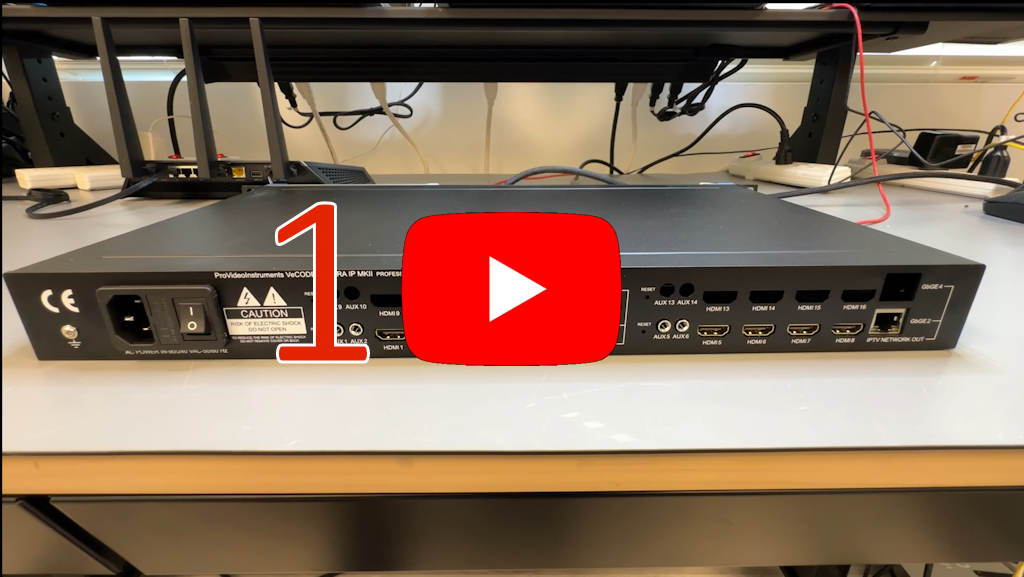
1 - introduction
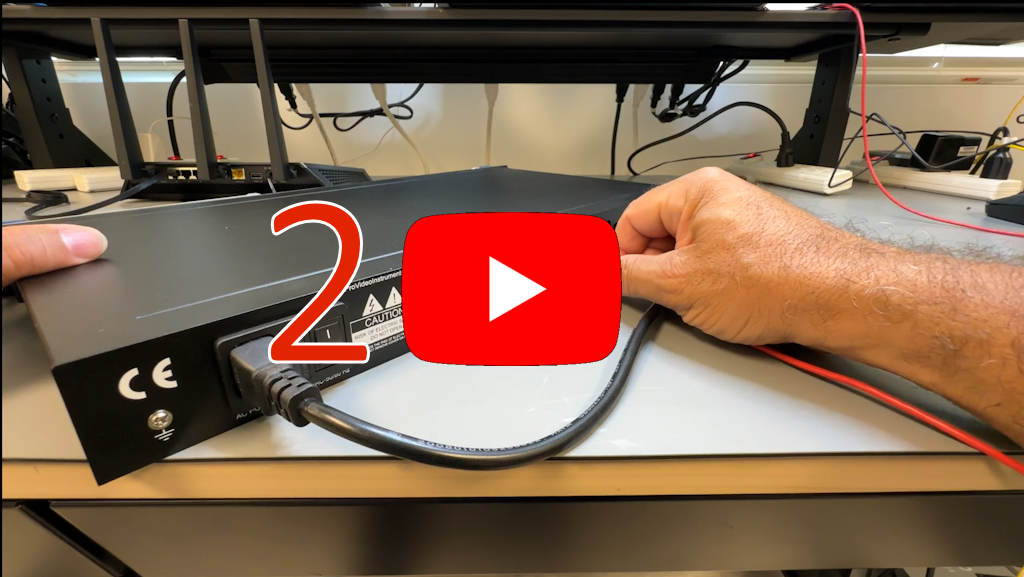
2 - connection
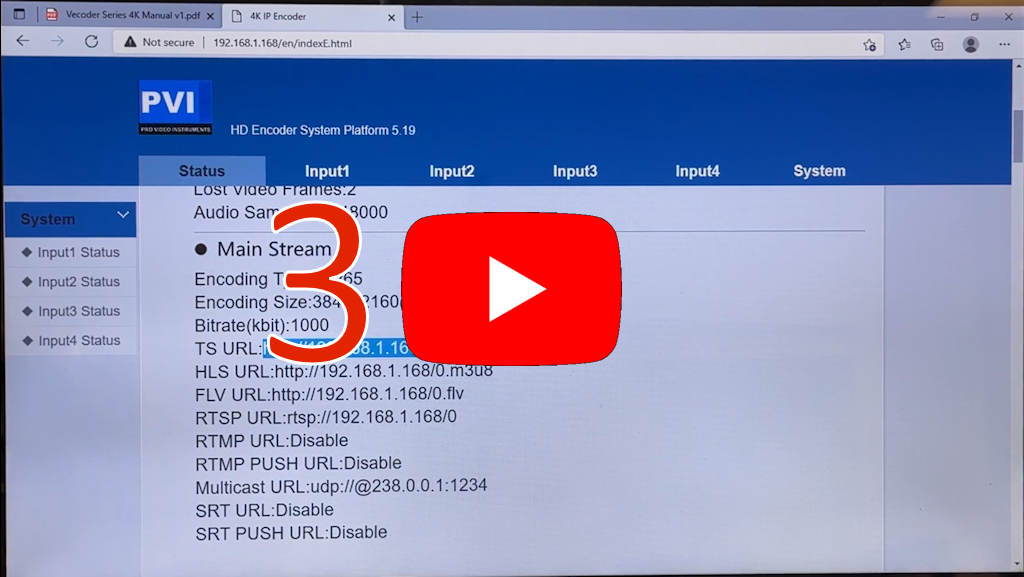
3 - streaming links
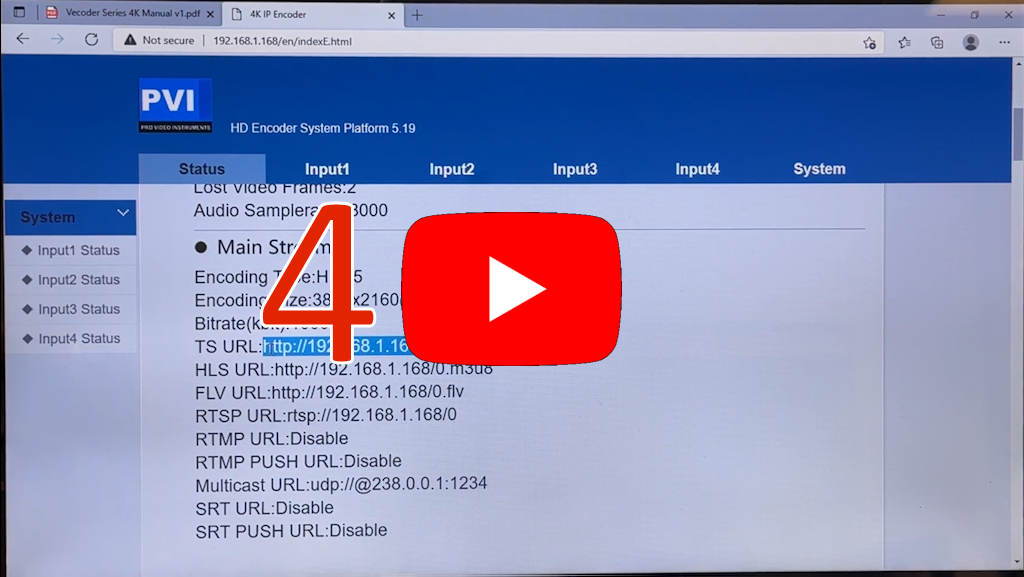
4 - setup
5 - testing
6 - conclusion
VeCODER 4K Instruction Manual

VeCODER MANUAL
How to play on Smart TVs
or IP Set Top Boxes
1) Our IPTV encoders support all standard streaming formats.
2) Refer to your Smart TV app or set-top box documentation to determine the required stream format.
IMPORTANT: We are unable to provide technical support for third-party apps or devices
as their software is updated independently.
Please contact their support team regarding:
"HOW TO LIST MY ENCODERS CHANNELS ON YOUR APP or BOX"
Smart TV apps you could use to play our IPTV Encoders:
IMPORTANT
The following is a partial list of IPTV apps available on the market.
We do not provide setup support for third-party applications.
This list is provided as a starting point for compatible player apps.
We cannot guarantee that these apps will maintain their current features or policies.
Please refer to each app's documentation for details.
- SMARTIPTV - https://siptv.app/about/ (free/paid)
- GSE - https://gsesmartiptv.com/ (free/paid)
- SMARTTV - https://smarttv.club/ (free)
3) Once you know the required streaming format, configure your encoder accordingly.
4) A common configuration uses the HLS/M3U format:
- To ENABLE THIS FORMAT please follow our instruction manual to login with your computer browser
- On our MAIN STREAM Encoder setting page > ENABLE > HLS URL: /0.M3U8 mode
- Click ENABLE from the dropdown tab
5) How TO CREATE an M3U8 channel list file to load onto your TV APP or IP SET TOP BOX
- Most of the TV APPS or SET TOP BOX requires an M3U8 CHANNEL LIST FILE to display in their list the channels
- Every APP or BOX might use a different syntax, so please refer to the APP or BOX technical manual or contact their tech support
- On our encoder STATUS PAGE you can find the ACTUAL M3U8 URL for this encoder stream, so you can copy it and paste it as needed to the TV APP or SET TOP BOX following their user manual
6) A typical M3U8 FILE looks like this
#EXTM3U
#EXTINF:0, CHANNEL 1
http://DEVICE IP ADDRESS/0.m3u8
#EXTINF:0, CHANNEL 2
http://DEVICE IP ADDRESS/0.m3u8
#EXTINF:0, CHANNEL 3
http://DEVICE IP ADDRESS/0.m3u8
7) Explanation
#EXTM3U (ALL-NEW CHANNEL FILES MUST START WITH THIS STRING)
#EXTINF:0, CHANNEL NAME (ENTER the name YOU WISH TO DESIGNATE the channel with)
http://YOUR IP ADDRESS/0.m3u8(FIND BY IDENTIFYING HLS URL IN MAINSTREAM STATUS MENU)
8) Complete example of an M3U8 channel list file, where each line includes the ENCODER CHANNEL NAME and the ENCODER IP LINK to ITS 0,m3u8 stream
#EXTM3U
#EXTINF:0,HD1
http://192.168.1.168/0.m3u8
#EXTINF:0,HD2
http://192.168.1.169/0.m3u8
#EXTINF:0,HD3
http://192.168.1.170/0.m3u8
Additional Documentation
No additional documentation available at this time.
Need Additional Help?
We typically respond within 24 hours on business days.
Need more help? Our US-based engineers are here for you.
We typically respond within 24 hours on business days.
Call +1 407 720 6101
Contact Support