


Tech Support for IPTV DECODERS
IPTV Decoders
Tech Support Page
Is this your product?

VeCOAX ULTRA PLUS
Firmware Upgrade
Version 3.6
VeCOAX ULTRA+ Instructions
Quick Installation
IF you are merging the VeCOAX ULTRA+
with other coaxial TV channels,
FIRST find out the FREE CHANNELS
not used on your TV channel list
so channels will not jam each other.
Look on your TV channel list
for UNUSED channel numbers.
You will need to set the Ultra Channels on these free channels numbers.
If you are not merging any other channel, disregard this.
1) The unit supports one-click setup by recalling a factory preset.
2) if you are installing multiple VeCOAX ULTRA+ over the same cable simply recall a DIFFERENT PRESET per each unit so these will not conflict over the same coaxial cable
3) At first, connect the ULTRA + DIRECTLY to a test reference TV with a short piece of coaxial cable
4) You do not need to connect any HDMI input at this stages
5) On the VeCOAX ULTRA + display navigate to PRESET MENU then select the TV STANDARD you need an the PRESET # for this unit

5A) PRESET > Select 1 for the first VeCOAX ULTRA+ unit
IF YOU ARE COMBINING MULTIPLE UNITS OVER THE SAME COAXIAL CABLE
PLEASE MAKE SURE TO SELECT A DIFFERENT PRESET NUMBER PER EACH UNIT
1 / 2 / 3 / 4 ....
5B) SELECT THE STANDARD:
-
ATSC > for USA ANTENNA AIR ATSC TV mode.
(This also allows you to MIX the VeCOAX ULTRA+ channels with an antenna channels if needed)
YOU WILL NEED TO SCAN YOUR TV CHANNEL LIST USING AIR DIGITAL ANTENNA MODE on your TVs menus
-
J.83B > for USA CABLE TV mode.
(This also allows you to MIX the VeCOAX ULTRA+ channels with cable tv channels if needed)
YOU WILL NEED TO SCAN YOUR TV CHANNEL LIST USING DIGITAL CABLE MODE on your TVs menus
-
DVB-C > for EU CABLE TV mode.
(This also allows you to MIX the VeCOAX ULTRA+ channels with cable tv channels if needed)
YOU WILL NEED TO SCAN YOUR TV CHANNEL LIST USING DIGITAL EUROPEAN DVB-C CABLE MODE on your TVs menus
-
DVB-T > for EU/AU/NZ/CO TERRESTRIAL TV mode.
(This also allows you to MIX the VeCOAX ULTRA+ channels with DVB-T digital terrestrial tv channels from an antenna if needed)
IMPORTANT: you will need to set the BANDWIDTH MODE from the modulation option menu as follows:
- 8 MHZ if used in Europe
- 7 MHZ if used in Australia / New Zealand
- 6 MHZ if used in Colombia / Panama
YOU WILL NEED TO SCAN YOUR TV CHANNEL LIST USING DIGITAL TERRESTRIAL DVB-T TNT DTV MODE on your TVs menus
-
ISDB-T > for South America / Brazilian TERRESTRIAL TV mode.
(This also allows you to MIX the VeCOAX ULTRA+ channels with ISDB-T digital terrestrial tv channels from an antenna if needed)
YOU WILL NEED TO SCAN YOUR TV CHANNEL LIST USING DIGITAL TERRESTRIAL ISDB-T MODE on your TVs menus
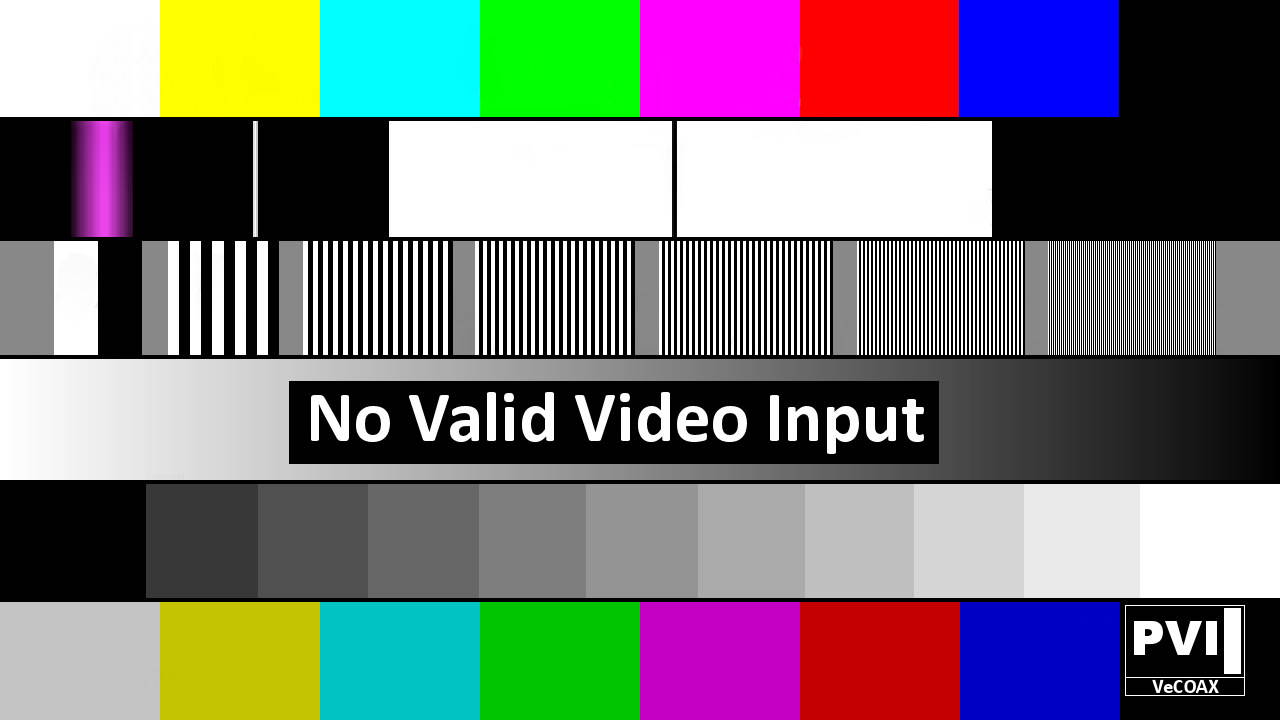
Per Each channel You should see a color-bars test pattern like the one below:
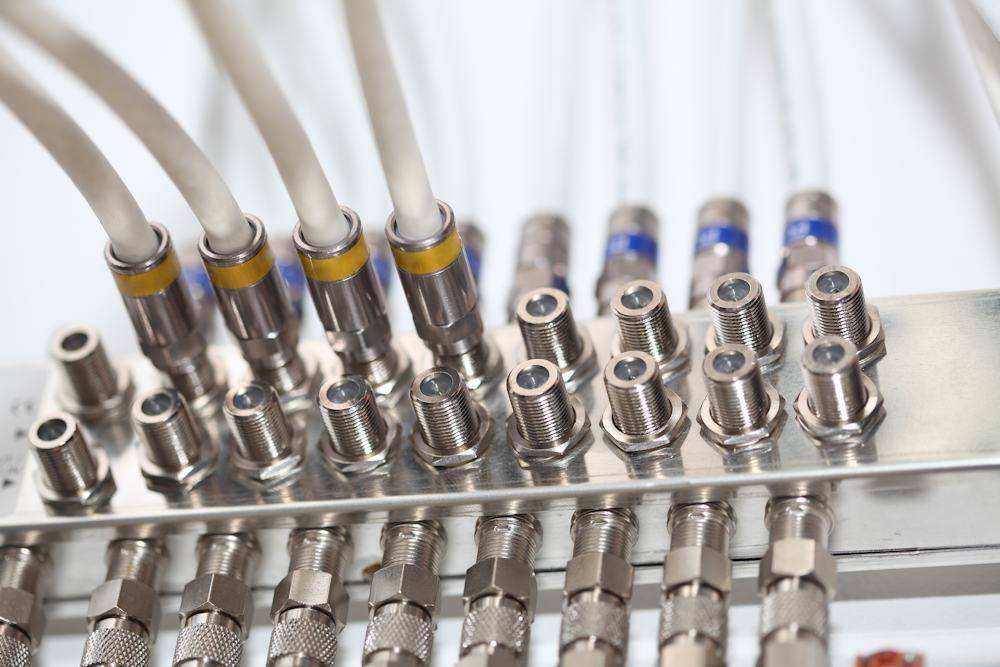
Connect the VeCOAX to the splitter so its VeCOAX ULTRA+ channel signal reaches all TVs through the splitter.
See the diagram below:
12) Disconnect the VeCOAX ULTRA+ from this splitter and connect to the next ones, one by one, repeating the same test from STEP #11
When a valid HDMI source is connected (480/576/720/1080 i/p at 50/60 fps), the channel LED on the VeCOAX ULTRA+ display will turn green and an antenna icon will indicate the active broadcast channel.
If you experience problems with an HDMI source, Troubleshoot HDMI sources →
Closed captioning is embedded in the HDMI signal. To display captions on all TVs, enable closed captioning on your HDMI source device.
Additional Documentation
VeCOAX ULTRA PLUS Instruction Manual
Need Additional Help?
We typically respond within 24 hours on business days.
Need more help? Our US-based engineers are here for you.
We typically respond within 24 hours on business days.
Call +1 407 720 6101
Contact Support